
TestFlight feedback: How to turn tester reports into a fix list in 20 minutes
A practical workflow for triaging TestFlight crashes and screenshot feedback, prioritizing serious bugs, and turning useful reports into actionable tasks.

A surprising amount of TestFlight feedback sits unread in App Store Connect. Testers screenshot bugs, write comments, and share crash reports, but then it all sits in a web dashboard the developer checks once, feels guilty about, and puts to one side.
Part of this is the pretty grim App Store Connect user interface for TestFlight; it’s weirdly slow, which is part of the reason I built a better, free version inside Kickstart. The other part is a lack of a clear process for managing feedback when it comes in – it’s easy to assume that just knuckling down and working hard will get you through, but the truth is that adopting a fairly small process will get you much further.
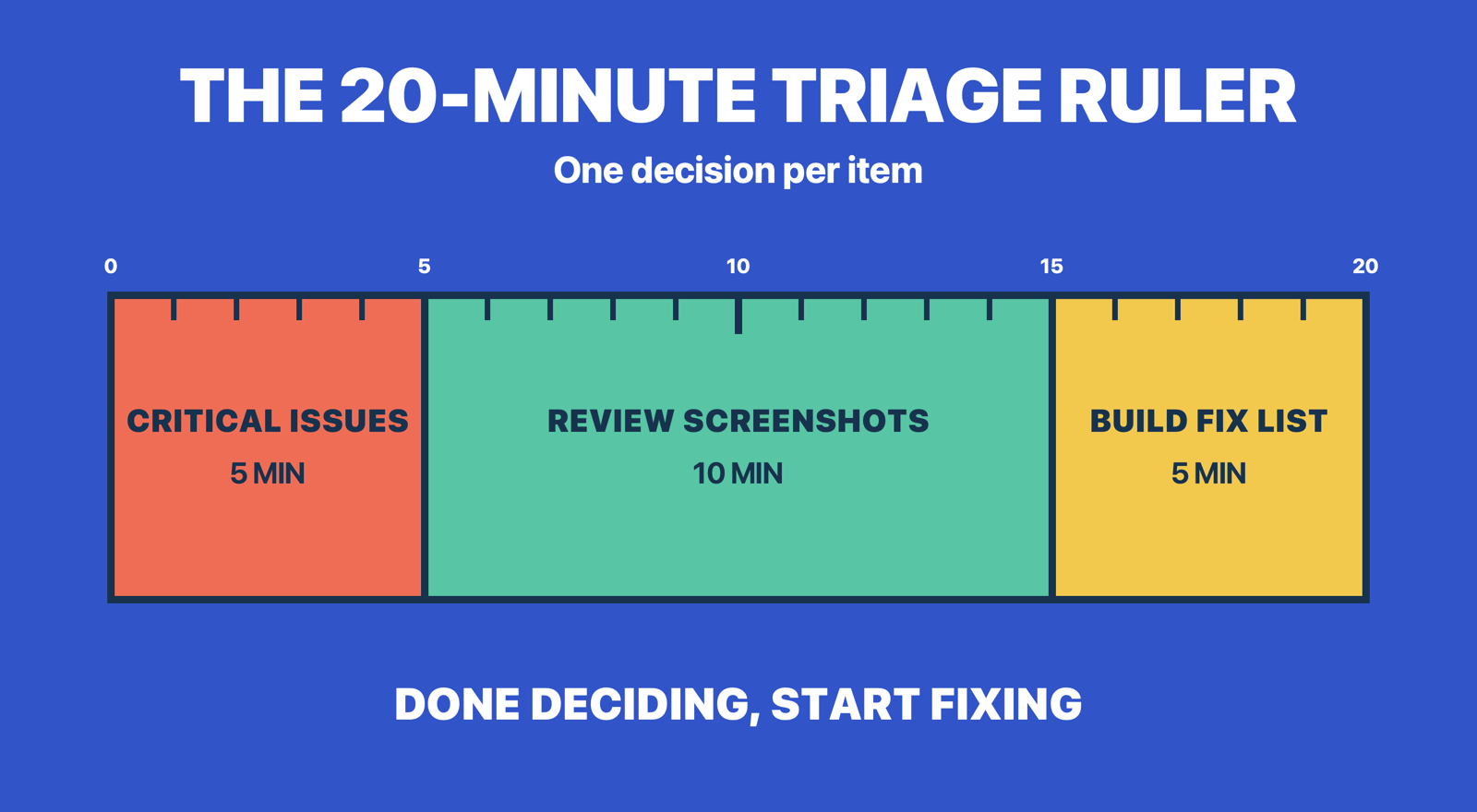
Start with bugs that will actually block your release: classify each report, write down your decision somewhere you’ll actually look, and give it a sensible name so you never triage it twice. Your target is to get through 10 reports in about 20 minutes – this is just classification time, mind you, not fixing time. If everything goes to plan, at the end of the process you should have a fix list instead of a guilt list.
I’m writing this partly in the hope you’ll do better than me: I’ve run betas where testers sent useful screenshots and I didn’t look at them for two weeks – by which point one tester had reported the same bug three times. If you ignore their feedback, don’t expect your testers to return – this approach tries to make triaging bugs cheap enough it actually happens.
What testers send you
TestFlight supports providing feedback through screenshots or crashes, and both are available in App Store Connect:
- Screenshot feedback. A tester takes a screenshot inside your beta app and sends it in.
- Crash feedback. When your beta app crashes, TestFlight offers to share the crash with you, optionally with a comment about what the tester was doing at the time.
Feedback usually comes with useful context such as device model, OS version, locale, connection type, free disk space, and battery percentage – these can feel a bit like playing a game of Cluedo (or Clue for American readers). Crash feedback can include a crash log, which Xcode can turn into exact lines of code to investigate.
There are two extra things worth knowing:
- Testers can’t send feedback if it’s disabled for their group – if you get nothing back from a group, make sure you go to the Settings tab for a group and check feedback is enabled.
- TestFlight has no way to reply to reports. If someone joined through a public link, Apple may display them as anonymous rather than showing a name and email address. So, invite specific people over email when they have agreed to reply with feedback.
The triage process in App Store Connect
In App Store Connect, open your app, go to TestFlight, and you’ll find Screenshots and Crashes under Feedback in the sidebar. Then follow this simple process:
- Tackle the highest severity problems first: Crashes are serious, yes, but things like data loss, security or privacy issues will probably outrank a low-impact crash. Take note of the affected build number, the user’s device, and any extra notes for anything you can’t easily explain.
- Screenshots next: For each one, look at the image before the comment – testers often circle the actual problem while describing something else. Write down a simple classification for each one, such as fix now, task, duplicate, needs information, cannot reproduce, deferred, or declined with a short reason so you can remember it in the future.
- Write down the survivors: Every “task” item goes into whatever system you’ll actually look at tomorrow – Reminders, GitHub Issues, a text file, etc; it genuinely doesn’t matter, as long as it isn’t “I’ll remember.”
I find it chronically easy to get lost investigating one specific bug report, but it never helps – time and time again I’ve found the better approach is to do a quick sweep just to categorize things, then start focusing afterwards.
The problem is that I find myself reading reports multiple times – opening the same screenshot over and over again because I never took the time to make a clear decision. So, the smarter and simpler approach is to touch each report only once: open it, log it, make a decision, then move on.
There’s another rule that took me weirdly long to learn: it’s okay to defer or decline some feedback. It’s not a sign of failure – sometimes it’s a tester opinion you disagree with, or a bug you already fixed in the next build, or maybe it’s just a feature request that’s really a wholly different app. Make your decision, record your reasoning, then move on.
The same process in Kickstart
TestFlight managed was one of the core features of Kickstart from its earliest beta, because I know how cumbersome it is through App Store Connect and wanted something better. It’s a completely free feature of the app, so you can start using it today.
Kickstart downloads your feedback using the App Store Connect API, and caches it locally, meaning that all your triage work happens instantly on your Mac instead of a web dashboard.
The Feedback tab in Kickstart’s TestFlight section helps speed up the work significantly:
- A filter menu for All, Screenshots, or Crashes – so “crashes first” is one click.
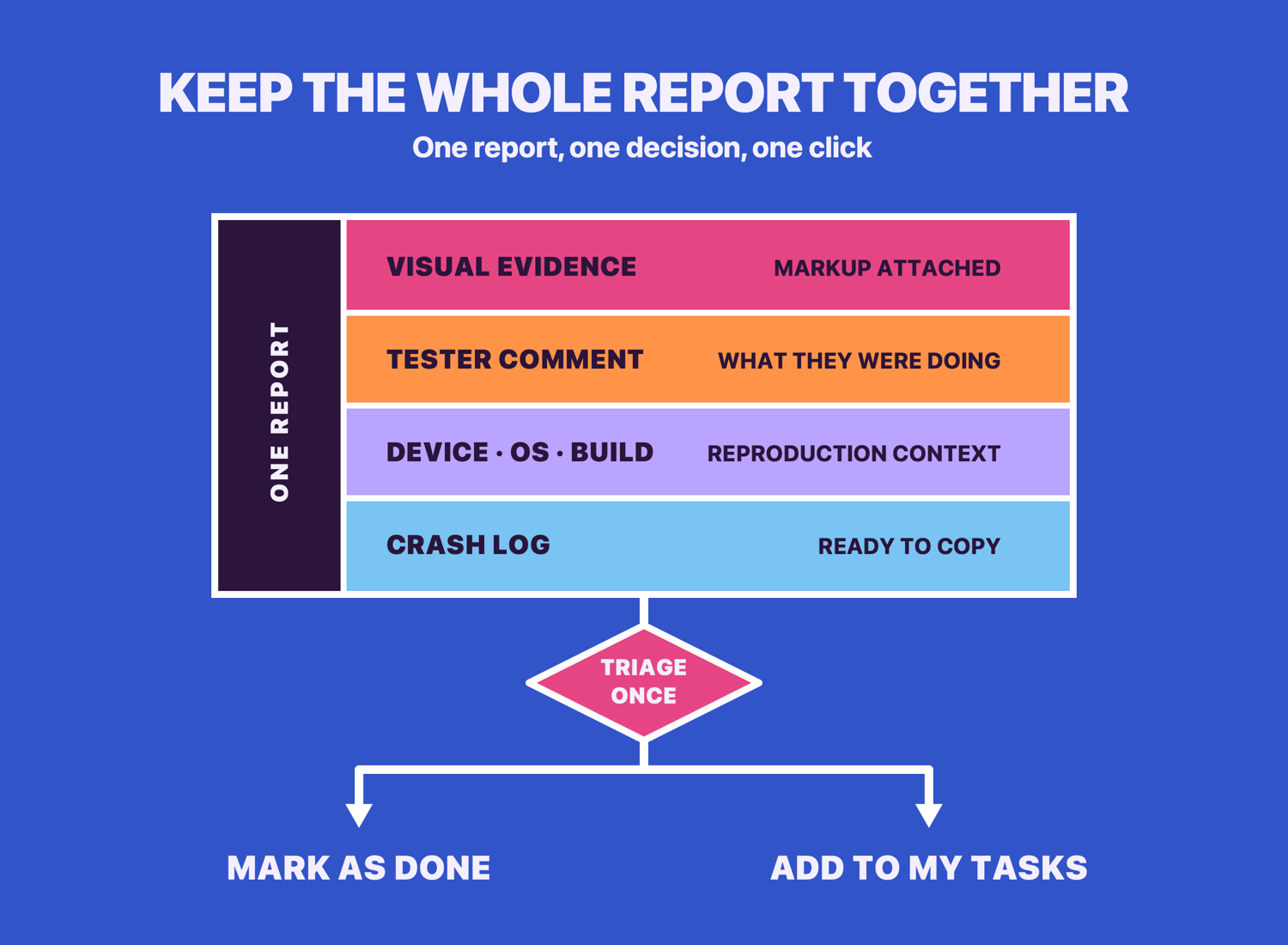
- Click any report for more details, including full-size screenshots, comments from the tester, and a metadata sidebar showing their device, build, locale, and battery.
- Kickstart fetches crash logs so you can send them straight into Xcode or your bug tracker.
- You can mark specific items as being resolved, with one simple toggle to hide all done tasks to keep them out of your way.
- Add to My Tasks add an item to your launch calendar as an outstanding task, carrying the tester’s comment, device details, and email with it.
There’s also an export option that writes everything out as a CSV file alongside folders of screenshot PNGs and crash logs.
With Kickstart’s caching and filters, a 10-item backlog can be done inside 20 minutes. It’s the same thing you can do directly on App Store Connect supports, Kickstart just removes enough friction that you’ll still be doing it in week six of the beta.
What Kickstart doesn’t do
Although I made Kickstart to be as helpful as possible here, there are a few things it can’t do:
- It won’t cluster five reports of the same bug into one – you’re still the one who notices that three screenshots show the same broken layout.
- It doesn’t reply to testers, because nothing can; that’s a limitation of TestFlight.
- It’s not a bug tracker – a complex bug still deserves a proper issue wherever your code lives.
Ultimately you need to be the judge of all these things, Kickstart is just there to help.
Stop reading, start doing
- Open App Store Connect for your app, go to the TestFlight Feedback, and count the items you’ve never read.
- Set a 20-minute timer and try triaging: crashes first, one decision per item, with all survivors written down somewhere.
- Check each beta group has feedback enabled – silent testers are sometimes just muted testers.
- Put a recurring 20-minute triage slot in your calendar for the length of the beta. The habit is the feature.
And if you’re looking for advice on choosing testers, writing What to Test notes people actually read, and keeping a beta alive past week two, make sure and read my post on exactly that topic: TestFlight best practices.